
Playback and practice
Rast is designed for the way musicians actually practice: slow a phrase down, drop the key a tone, mute the vocal, count yourself in. Every change happens live as the song is playing — there is no rendering, no waiting, nothing to save.
Already imported a song? Pick it from the sidebar and start with the spacebar.
Transport
The transport bar sits below the timeline.
- Space — play / pause
- Stop button — return to the start
- Left arrow — jump back 5 seconds
- Right arrow — jump forward 5 seconds
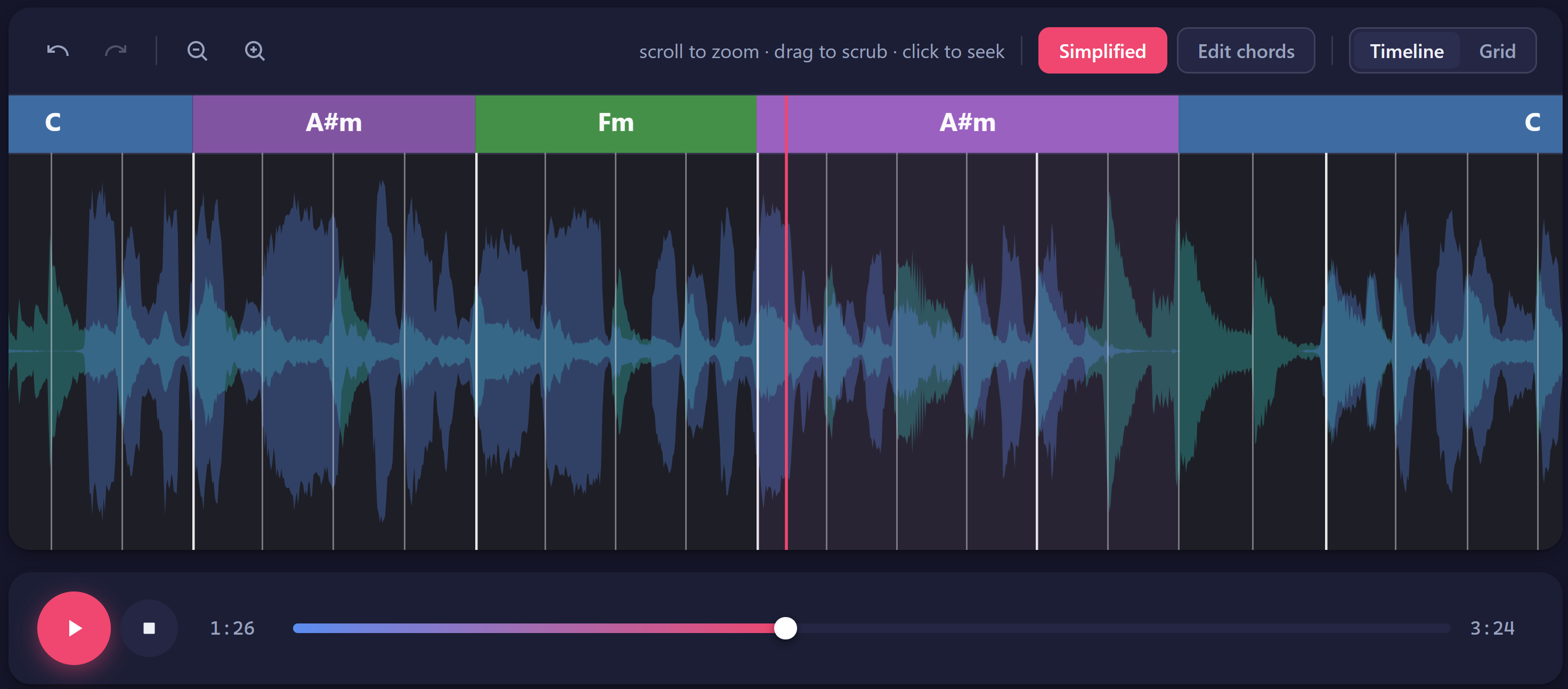
The seek bar shows the current position and total length. Drag the playhead, or click anywhere on the bar to jump there.
Scrubbing the timeline
The timeline above is interactive too. The playhead stays centered while the song scrolls past it.
- Click anywhere in the timeline to seek to that moment.
- Drag to scrub through the song — useful for landing exactly between two beats.
- Scroll with the mouse wheel to zoom the timeline in or out.
The chord boxes above the waveform show what is being played; the colored band underneath is the vocal and instrumental energy.
Stem volumes
The two sliders under Stems in the controls panel are your mix.
- Vocals — pull this to zero to practice singing over the band.
- Instrum. — drop this to play along on guitar or bouzouki without competing.
Scroll the wheel over either slider for fine 5% steps.
Pitch shift
Under Key, the + and − buttons (or Up / Down arrows on the keyboard) shift the song in semitones, from −12 to +12. The displayed root note updates to show the transposed key, with the offset (e.g. +3) underneath. Chord labels in the timeline transpose with it. Pitch is changed in real time — no re-render, no quality loss for small shifts.
Speed
Under Speed, the slider runs from 50% to 150%. Drag it, or scroll to nudge in 5% steps. The pitch stays put while the tempo changes — perfect for slowing down a fast solo without learning it in the wrong key.

Metronome
Toggle the metronome on with the switch under Metronome. The slider next to it sets click volume.
The dropdown picks the tick pattern:
- Downbeat — clicks on beats 1 and 3
- Backbeat — clicks on 2 and 4
- Every beat — straight quarter notes
- Subdivide — eighth notes
Tick Count-in to get a free bar of clicks before playback starts after a pause — useful for entering on the right beat after seeking.
Pitch and speed are always live, so you can practice with one hand on the keyboard, dropping the song a tone or shaving off 10% the moment a passage gives you trouble.