

Editing the chord chart
No chord detector is perfect, especially on Greek modal music. Every chord on the timeline is editable, and your changes stick to the song.
Turning on edit mode
Press E, or click the Edit chords button at the top right of the timeline. A subtle banner appears at the top reading Edit mode, and clicking on a chord cell now selects it instead of seeking the playhead. Press E again (or click the button) to exit.
Picking a chord
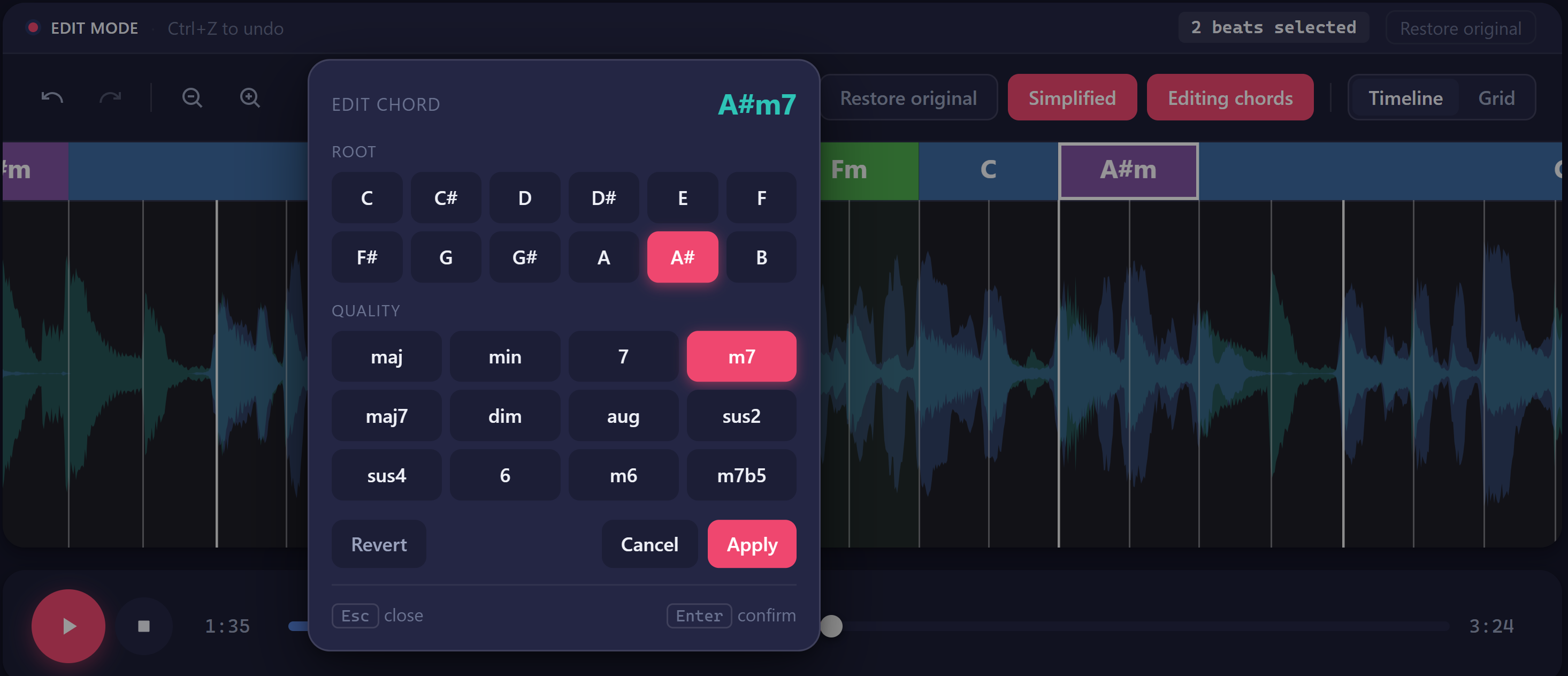
In edit mode, double-click any chord cell. The picker shows 12 roots and 12 qualities (major, minor, 7, m7, maj7, dim, aug, sus2, sus4, 6, m6, m7b5). Click a root and a quality, then press Enter (or Apply). Esc cancels.
If the song has an original detection on file, the picker also offers Revert to drop just that one cell back to what the model first guessed.
Selecting a range
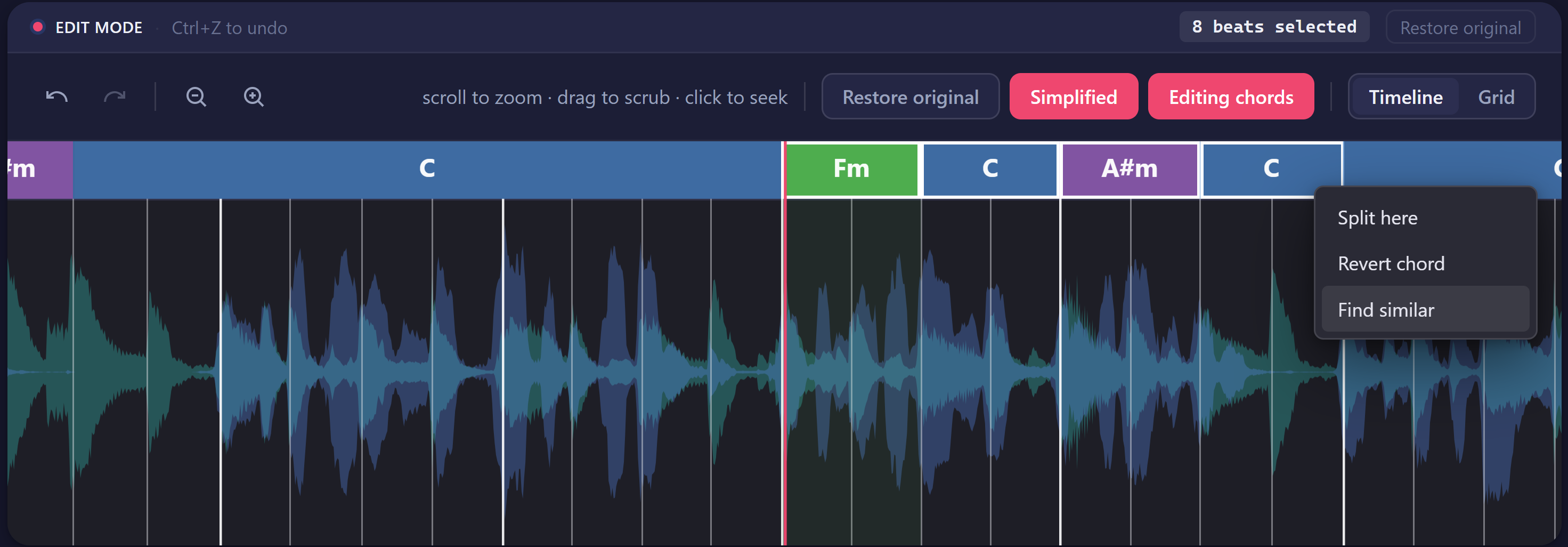
For multi-cell edits, click and drag horizontally across the chord lane. Rast snaps your selection to the nearest beats and shows a white outline around every cell in the range, with a "N beats selected" badge in the banner. Single click selects one cell; Shift+click extends the selection to a different cell.
Press Esc to clear the selection.
Copy, cut, paste
With a range selected:
- Ctrl+C — copy the selected chords to the clipboard
- Ctrl+X — cut them (the gap fills with a single chord)
- Ctrl+V — paste at the playhead position
Pasting respects the original beat lengths of the copied chords, snapped onto the destination's beat grid. This is how you turn one verse's progression into all four verses without retyping it.
The clipboard persists across songs, so you can copy a turnaround in one song and paste it into another.
Undo, redo, restore
- Ctrl+Z — undo the last edit
- Ctrl+Shift+Z or Ctrl+Y — redo
Edit history is kept per-song, up to 50 steps deep, and is independent across songs in your library — undoing in one song does not affect another.
If you have made many edits and want to start over, click Restore original in the edit banner. Rast asks for confirmation, then drops the entire chart back to the analyser's first guess. This is destructive — undo will not bring your edits back after restoring.
Other useful tricks
- S at the playhead splits the current chord cell into two, so you can change just the second half.
- Right-click a chord cell for a small menu: Split here, Revert chord, and (with a range selected) Find similar — Rast searches the rest of the song for ranges that sound like your selection, then offers to paste your chords onto each match in one click.
Edits save automatically. Close the song, come back tomorrow, your chart is exactly as you left it.